👁 0 views

1. Which Photoshop Version Should You Use on a Weak Computer?
On a low-end computer, use the official Photoshop through Adobe Creative Cloud (it comes with a 7-day trial) and apply the optimization tips below. If you only need basic editing, you can use lighter free software such as Photopea (runs in the browser) or GIMP.
Don’t use unofficial “Portable” / “Sway” builds: they are cracked, pirated builds that often come with malware, can’t be updated and are missing many features.
If your computer is a bit better, you can check the specs and requirements for installing the full version of Photoshop.
2. Speed Up Photoshop
If you can’t afford a high-spec computer or a hardware upgrade, you can try the following:
First, in the Photoshop interface, press Ctrl + K to open Preferences, or choose the Edit-> Preferences menu to open it.

In the Preferences dialog, choose Performance:
- Memory Usage
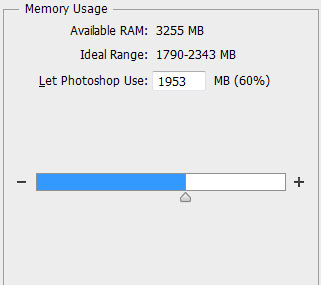
In Memory Usage, adjust $ to set how much of the system RAM Photoshop uses, depending on how much RAM you have, e.g.: <1GB: 50% <2GB: 60% < 4Gb: 70%.
Don’t give it all of the RAM, because system programs may not have any memory left to run.
- History & Cache

While you use Photoshop, the more you use Undo (Ctrl + Z), the more memory gets used up. It is usually set to 20 by default. You can lower it to 10 to make Photoshop run more smoothly.
Cache Levels: Cache Levels takes a value from 1-8; increasing this value means you increase the virtual memory: Scratch space. Choose high Cache Levels for large files with many layers, and low Cache Levels for small files with few layers
- Scratch Disks

Besides RAM, the computer’s hard drive also works like virtual memory; if your computer has several drives, select this feature to make it run more stably.
3. Turn Off Thumbnail display
When you edit large images, the thumnails always update automatically to reflect the new content of each layer. The more layers there are, the more thumnails need to be built, drawn and updated, and each one requires system resources. To free them up, follow me to open the Panel Options… dialog and choose None > Ok.
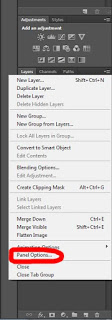 |
| Open the Panel dialog |
 |
| Choose None > Ok |
To speed up saving and opening files by up to 20 times in Photoshop CS6, you can check the Disable Compression of PSD and PSB Files option at the bottom of Edit > Preferences > File Handling. With CS5, you need a plugin to do this.
Have a question? Ask the groupFacebook group Ask Anything (in Vietnamese): free Q&A on any topic, with real answers.Join the group →