
👁 5 views
I successfully registered Google AI Pro free for 2 years on my own account. This article walks through every step with real screenshots so you can follow along and get the same result: install an extension, register the first 12 months, run two more 6-month rounds, then check the result.
Note on bundled fees: in the confirmation email, Google AI Pro is free for 730 days, but the YouTube Premium Individual Add On is free for only 29 days. YouTube Premium starts charging US$11.99/month from Dec 5, 2026 if you don’t cancel. (There is a cancel guide at the end of this article.)
Table of contents 5 items
What is Google AI Pro?
Google AI Pro is a Google subscription that bundles Google’s AI tools and 5 TB of storage for Google Photos, Drive and Gmail. You can use it to write content, research documents, generate images, make videos and get coding help.
How much does Google AI Pro cost?
List price: ₫5,000,000/year (about US$195) × 2 years = ₫10,000,000 (~US$390).
Following this guide: just ₫0 for 2 years of Google AI Pro.
My Google Play email confirmed US$0 for 730 days. You do it in 3 rounds: 12 months + 6 months + 6 months = 24 months.
What Google AI Pro includes
It includes expanded access to Google’s most powerful models and many other benefits:
- Gemini app: usage limits up to 4× higher than without a Google AI plan, plus access to Gemini 4 Argon, Deep Research and more.
- 5 TB of storage: total storage shared across Google Photos, Drive and Gmail.
- Google Flow: expanded access to Google’s AI creative studio to build cinematic shots and stories with advanced generative models.
- Google Search: use Gemini 4 Argon, Nano Banana Pro and more.
- Gemini in Gmail, Docs, Vids and other products: access Gemini right inside Google apps like Docs, Sheets and Slides.
- Gemini Notebook: expanded access to Google’s research partner with Audio and Video Overviews, Quizzes and more.
- Google Antigravity: a baseline request quota to use advanced models, including Gemini 4 Argon and Opus 5.5, in Google’s agent development platform.
- Premium Google Developer Program membership: build, learn and grow faster with Codelabs, Community and expanded Cloud credits.
- Google AI Studio: expanded quota to prototype, experiment and build with Gemini 4 Argon and Google’s multimedia models.
- Google Flow Music: expanded access to Google’s AI music studio.
- Gemini in Android Studio: expanded quota when using Google’s most powerful Gemini models for agentic help building Android apps.
- Colab: 200 compute units per month, access to powerful accelerators, longer runtimes and expanded Gemini usage limits.
- YouTube Premium Lite • Individual: watch most videos ad-free, offline and in the background.
The benefits above follow the Google AI Pro plan details; availability depends on your region, account and Google’s terms. You can read more on the official Google AI page.

How to register Google AI Pro for free
Before you start, prepare:
- A computer with the Google Chrome browser
- A Google account to register with. In my experience, use a new account, or one that has never bought Google One and never joined a family group
- The VeePN extension (this one worked best in my tests and is free) and the extension file shared in Step 1
- A valid payment method if Google asks to verify (a virtual card kept under a small limit is best if you register for several people)
Roadmap: prepare the extension → register 12 months → add 6 months + 6 months → check the email and manage renewal. Changing your IP does not guarantee the account qualifies for the offer.
Step 1: Set up a VPN and install the extension on Chrome
1.1. Connect a VPN to the United States
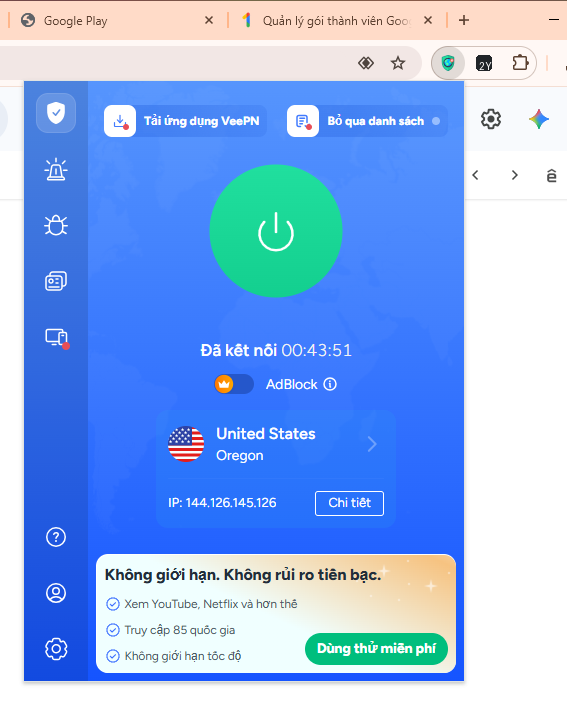
Install VeePN on Chrome, open the extension and choose United States → Oregon. Wait until the status shows connected.
1.2. Install the activation extension
Click the download button below. If it downloads as a zip, extract it before installing. You need two separate extensions: VeePN for the VPN connection and the extension downloaded from Fshare to do the plan-selection steps.
The file is shared via Fshare and has not been security-checked. Only install it after you have checked it and trust the source.
- Type
chrome://extensionsinto the Chrome address bar. - Turn on Developer mode in the top right.
- Click Load unpacked, choose the folder you just extracted and confirm.

Step 2: Register Google AI Pro free for the first 12 months
- Open the Google One plans page with the account you want to register.
- Open the extension installed in Step 1. Choose line 2 – Round 1 – 12 months.
- Choose Google AI Pro 5 TB, choose annual billing, then click Get discount.

Next, add a payment method: when Google opens the payment window, choose to add a card and enter your valid details. If you use a virtual card, check that it supports online payments.

Fill in your payment details.
Set the Zip code to: 97201.
Before clicking Subscribe, make sure the amount due reads US$0.

When everything is correct, click Subscribe to finish the first 12-month round. Then continue to Step 3 for the two 6-month rounds.

Step 3: Add two more 6-month rounds to reach 24 months
- Open the Google One membership management page with the exact account you just registered.
- In the extension, choose Round 2 – 6 months. On the Google One page, choose Annual then click Upgrade. Check the price and terms before confirming.
- After Round 2 is done, choose Round 3 – 6 months, again choose Annual → Upgrade and recheck the details.
Total time: 12 + 6 + 6 = 24 months, i.e. 2 years. Check your Google Play email and the membership page to confirm the term was applied.

Check the Google Play email after finishing
Open the Gmail of the account you just registered and find the plan-update confirmation email from Google Play. Under Google AI Pro (5 TB), check the line US$0.00 for 730 days. That confirms the free period on the account.

Step 4: Check and cancel renewal to avoid extra charges
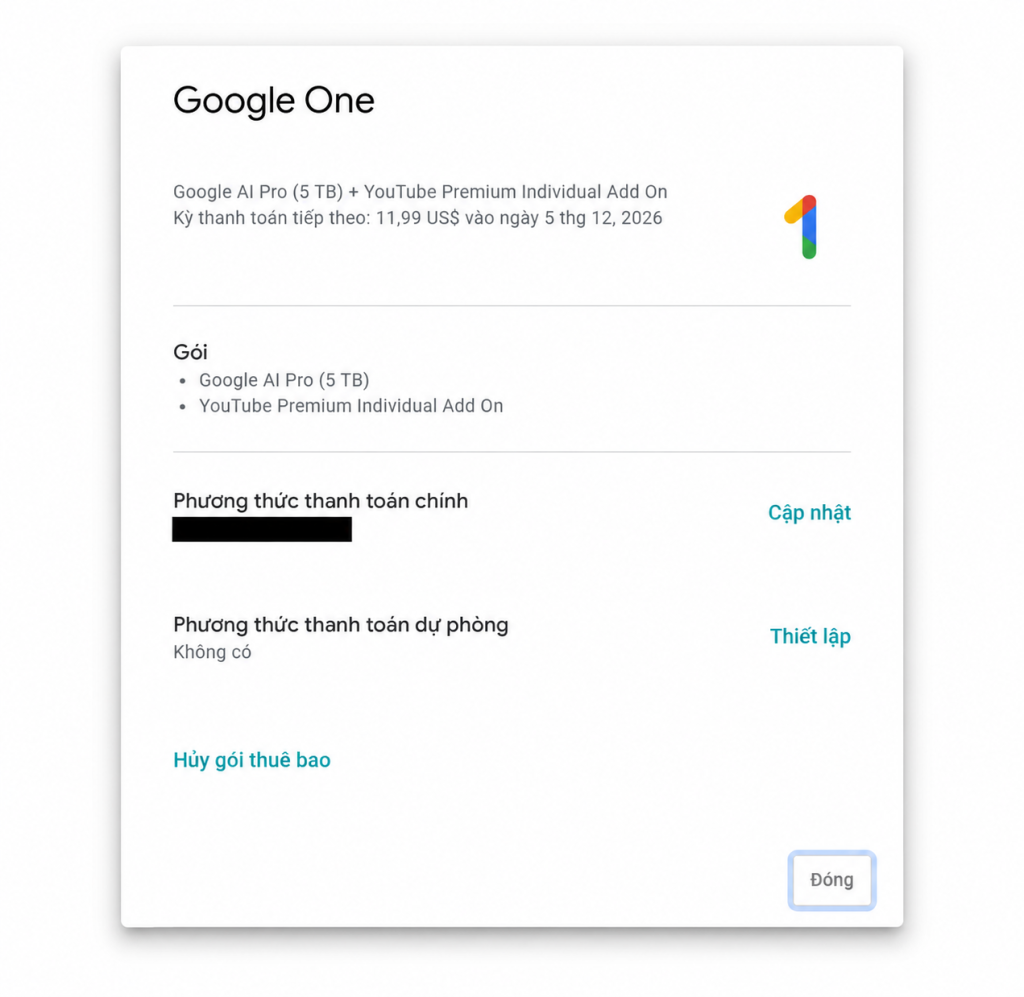
Don’t skip this step, especially since the plan adds YouTube Premium. In my email, AI Pro is free for 730 days but YouTube Premium is free for only 29 days.
4.1. Open the subscriptions page
Go to Subscriptions on Google Play, find Google One and click Manage.

4.2. Choose to cancel renewal
Click Cancel subscription. Also check the billing schedule of any bundled services.
4.3. Confirm the cancellation
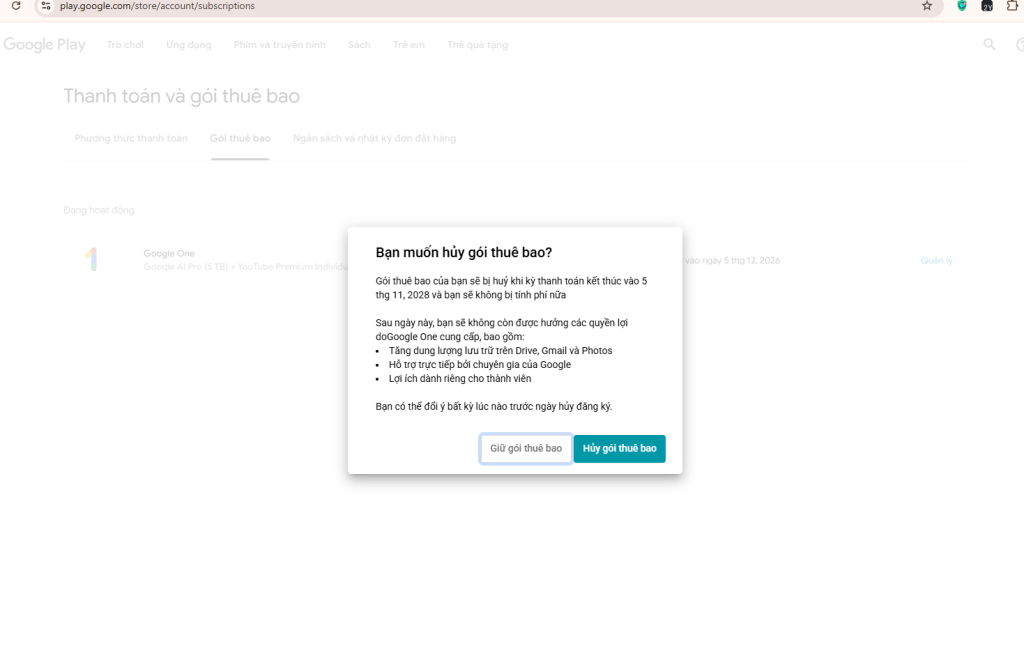
Read the benefit end date in the dialog, then click Cancel subscription to finish. Afterward, recheck the status and the cancellation confirmation email.
How to confirm Google AI Pro is free for 2 years
My Google Play email clearly states:
- Google AI Pro 5 TB: US$0.00 for 730 days.
- YouTube Premium Individual Add On: US$0.00 for 29 days; then US$11.99/month from Dec 5, 2026 if you keep it.
- From Nov 5, 2028: the email shows US$31.98/month for the combined plan if you keep both services per the schedule in the email.
So the email confirms 2 free years of Google AI Pro on my account. If you follow the steps correctly you’ll get a similar confirmation email. YouTube Premium’s free period is shorter, so you need to check and manage the bundled service separately.
After cancelling, read the benefit end date and check the confirmation email. For your account, use the term and billing schedule shown in that account as the source of truth.
Frequently asked questions about registering Google AI Pro free
Why do I have to do three rounds?
The process in this article is a first round of 12 months, a second of 6 months and a third of 6 months — 24 months in total. When done, check the email for the 730-day confirmation.
What if the offer doesn’t appear or the price isn’t US$0?
Refresh the browser, check that the VPN is set to the US, and make sure you picked line 2 in the ADD ON.
Is YouTube Premium free for 2 years along with AI Pro?
No. The email in this article confirms AI Pro free for 730 days, while the bundled YouTube Premium is free for only 29 days. Check the billing schedule and cancel any service you don’t want to keep.
Do I need to keep the extension after registering?
You can disable or remove the extension if you no longer use it.
Registration error:
Error: can’t buy the “YouTube Premium Individual Add On”. You can still buy the other items in the plan separately.
Fix: try another account, or change your country to the US here: https://payments.google.com/gp/w/home/settings
Related article
You can also sign up for another free AI tool: see the step-by-step guide in How to Sign Up for Muse AI and Get 1 Billion Free Tokens and follow the similar steps.

Sharing computer, Windows and software tips. If you have a question, leave a comment below.