👁 0 views
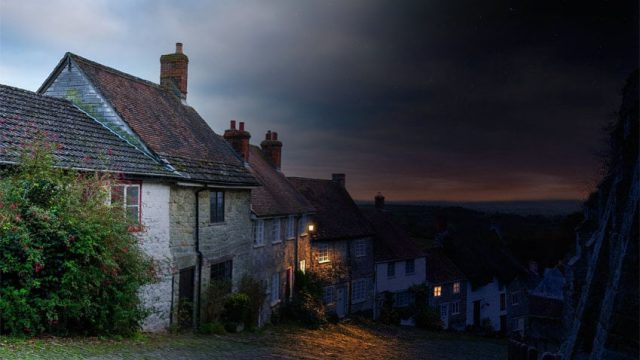
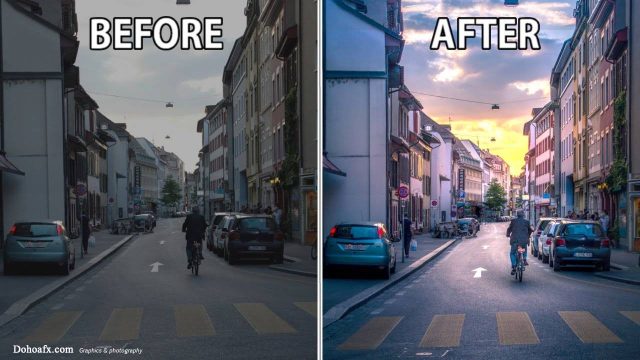
In this article, dicken will show you how to blend a beautiful brown-purple color tone. The photo being edited is a JPG file that may have been edited a little, with a color temperature of roughly 7000k. This is an article meant for teaching Photoshop, and here is the result photo after it is finished

Today I’m continuing with another pretty good tutorial for you. It applies a few small tricks in color blending that you might not have thought of. Take a look and support me.


Step 1:
– Open the photo in Photoshop (click this photo to save it for practice)

Step 2:
– Follow the order in the following images


– On this Selective Color Layer, press Ctrl + J to duplicate the Layer (I pressed Ctrl + J 3 times)
Step 3:
– Same as the step above, but we only adjust the Yellow color (without duplicating the layer as in the step above)

Step 4:
– Brighten the image a little


Step 5:
– Merge everything into one layer with the key combination Ctrl + Shift + Alt + E (you get Layer 1)
– On Layer 1 switch to the Channels tab, click to select the layer Green -> Ctrl + A then Ctrl + C. Click to switch to the layer Blue -> Ctrl + V (Ctrl + D to deselect).

Step 6:
– Switch back to the Layers tab. Create a new layer with Ctrl + Shift + N (you get Layer 2)
– On Layer 2 use the Gradient Tool (G) with the following settings.

– On Layer 2 set the blending mode to Soft Light and lower the Opacity to 80%

Step 7:
– Go to the menu as shown in the following image

– The value is # f18cdf.

– On the Photo Filter Layer you created, set the blending mode to Overlay (few people use this trick with Photo Filter). On this Layer, use the Brush Tool (B) to erase the smeared areas on the subject, to reduce the glare.
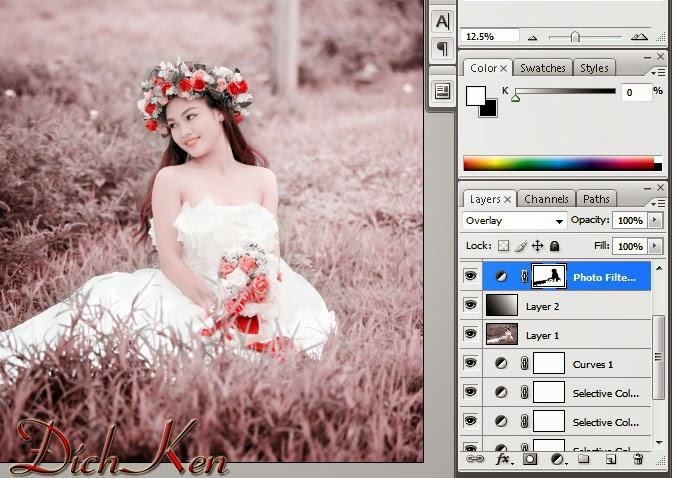
Step 8:
– Merge the images into one layer with the key combination Ctrl + Shift + Alt + E(you get Layer 3)
– On Layer 3 set the blending mode to Overlay and lower the Opacity to 31%.

Step 8:
– Do the same as step 3, but with the following color tone


After the steps above, we get the following result

Good luck!
Source: dichken.blogspot.com

Sharing computer, Windows and software tips. If you have a question, leave a comment below.