
👁 1 views
Table of contents 3 items
Symptoms
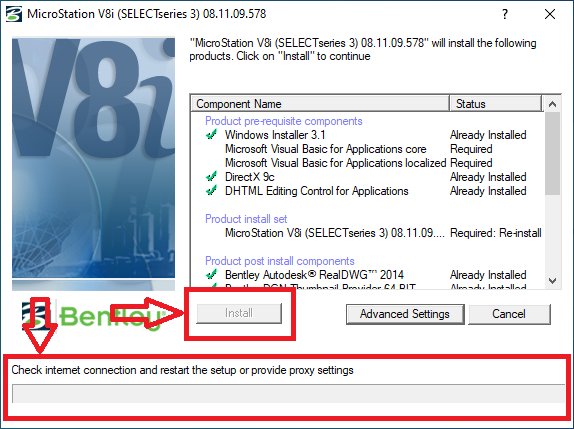
When installing MicroStation V8i, the installer shows:
- The message: Check internet connection and restart the setup or provide proxy settings
- The Install button is shown but cannot be clicked
- The installation cannot continue
If you see exactly the screen above, apply the fix below.
How to FIX the MicroStation V8i Error
Reinstall the Windows version from the link below
Download link:
After that installation finishes, install MicroStation V8i as usual
Note: at the step shown in the image, uncheck the Recommended box and Install as usual

Conclusion
If you get the error:
- Check internet connection and restart the setup or provide proxy settings
- The Install button cannot be clicked when installing MicroStation V8i
The only fix you need:
- Reinstall Windows from the link above
- Then install MicroStation V8i as usual
Have a question? Ask the groupFacebook group Ask Anything (in Vietnamese): free Q&A on any topic, with real answers.Join the group →

Hoang Ngoc Quang Anh
Sharing computer, Windows and software tips. If you have a question, leave a comment below.